Libraries & Scanning
Libraries are the foundation of Codex. This guide covers how to set up libraries, configure scanning, and organize your media collection.
Understanding Libraries
A library is a folder on your server containing your digital media files (comics, manga, ebooks). Codex scans these folders to discover and catalog your content.
Library Structure
Codex expects your media to be organized in folders:
/library/
├── Comics/
│   ├── Batman/
│   │   ├── Batman 001.cbz
│   │   ├── Batman 002.cbz
│   │   └── Batman 003.cbz
│   └── Spider-Man/
│       ├── Spider-Man v01.cbz
│       └── Spider-Man v02.cbz
├── Manga/
│   ├── One Piece/
│   │   ├── One Piece v01.cbz
│   │   └── One Piece v02.cbz
│   └── Naruto/
│       └── ...
└── Ebooks/
    ├── Fiction/
    │   ├── Novel.epub
    │   └── Another Novel.epub
    └── Non-Fiction/
        └── ...
Series Detection
Codex automatically creates series from:
- Folder structure: Each subfolder becomes a series
- Filename parsing: Extracts series name, volume, and number
- Metadata: ComicInfo.xml or EPUB metadata takes priority
:::tip Flexible Organization Codex supports multiple scanning strategies for different organizational patterns. See Scanning Strategies to configure how series and books are detected. :::
Creating a Library
Via Web Interface
- Log in as an admin
- Click Libraries in the sidebar, then click + to add a library
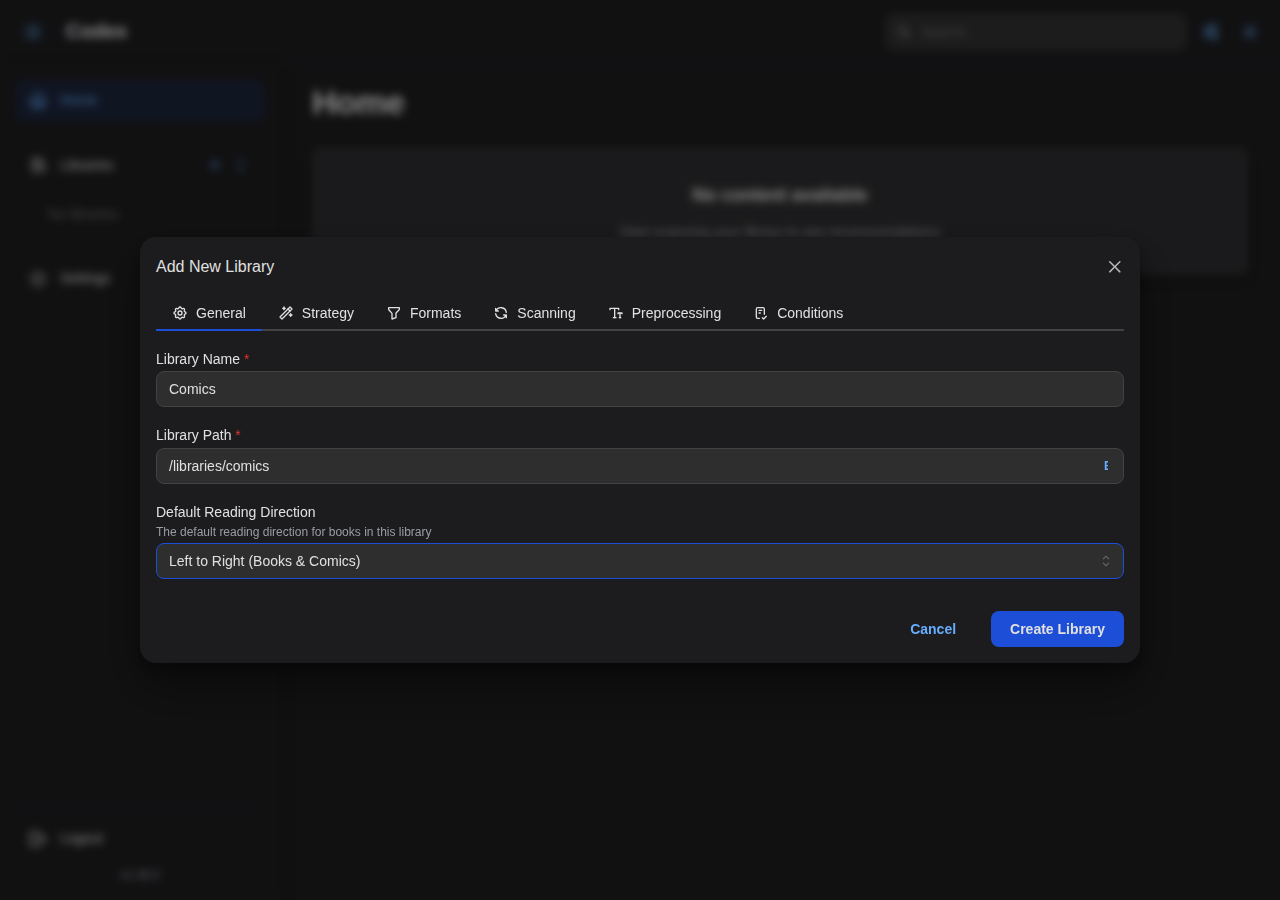
- Configure the General tab:
- Name: Display name for the library
- Path: Filesystem path to the folder
- Default Reading Direction: Based on content type
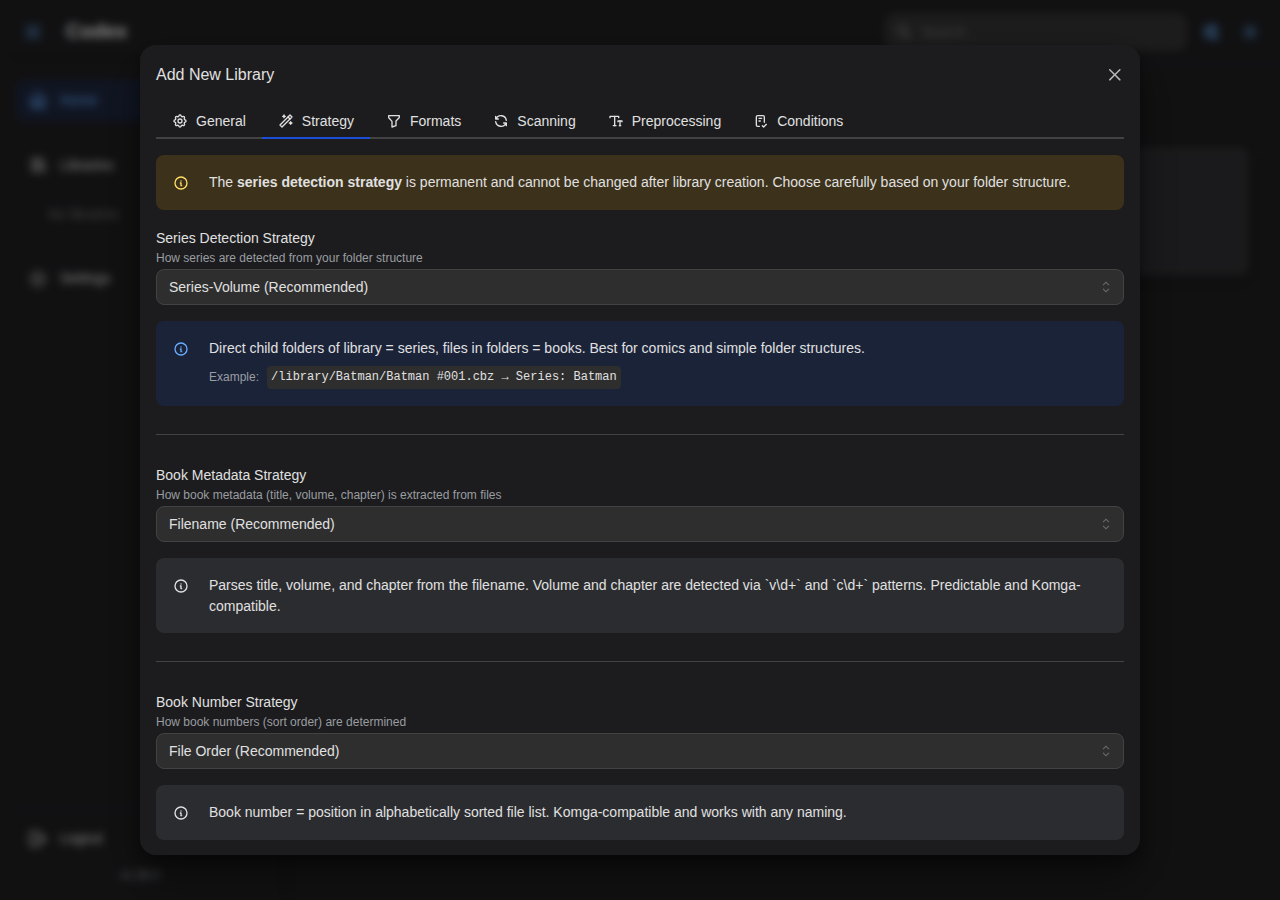
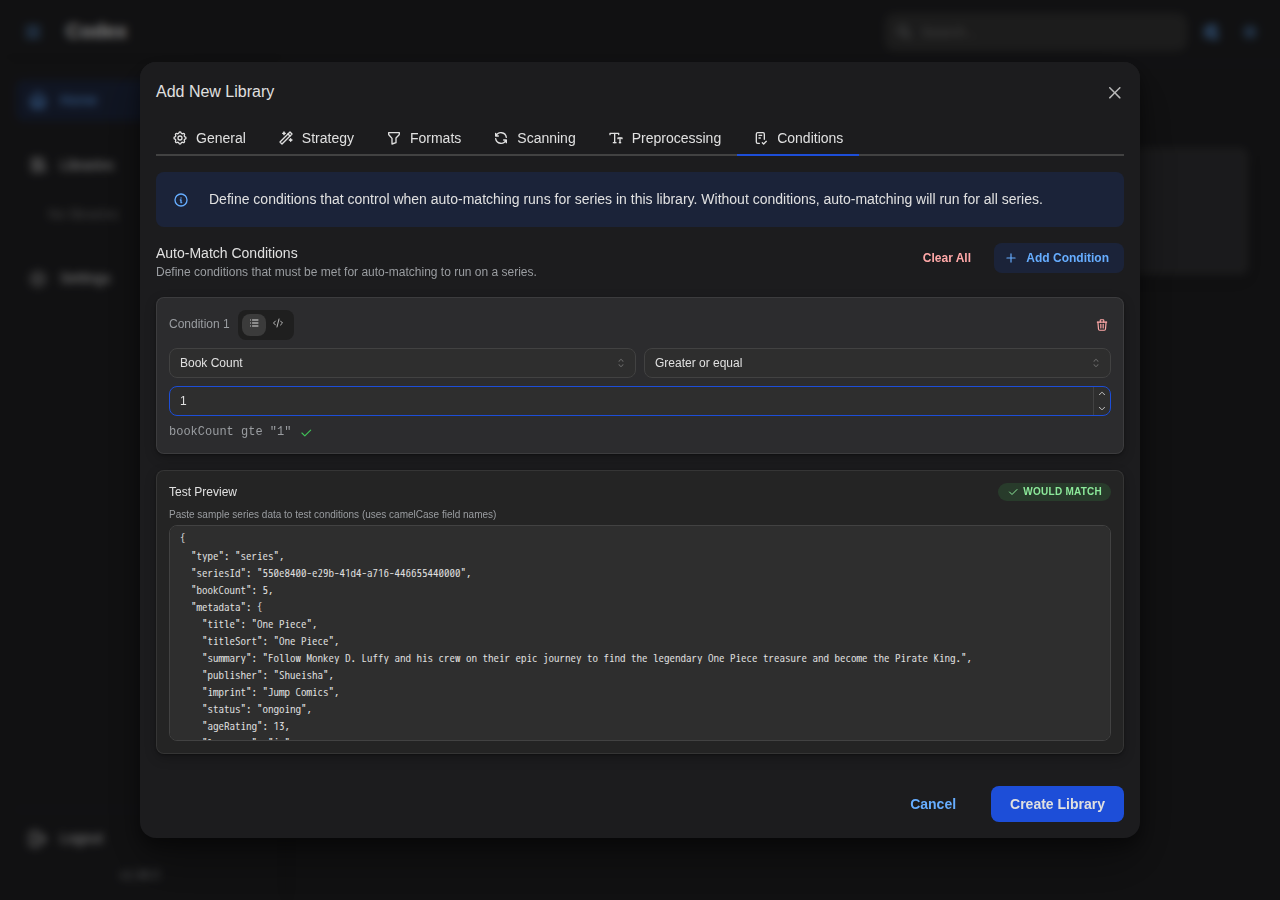
- Configure the Strategy tab for series and book detection
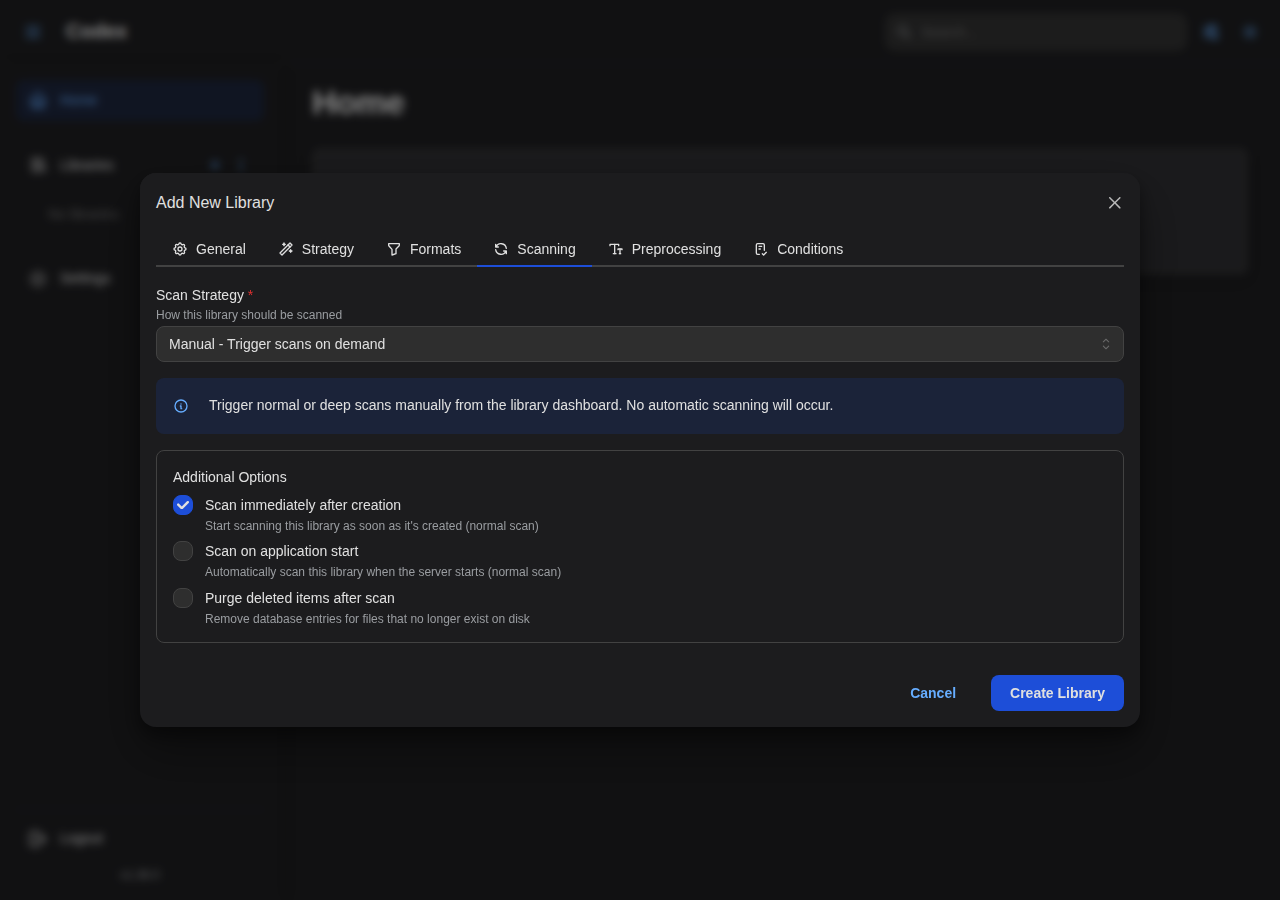
- Configure Scanning options (manual or automatic with cron)
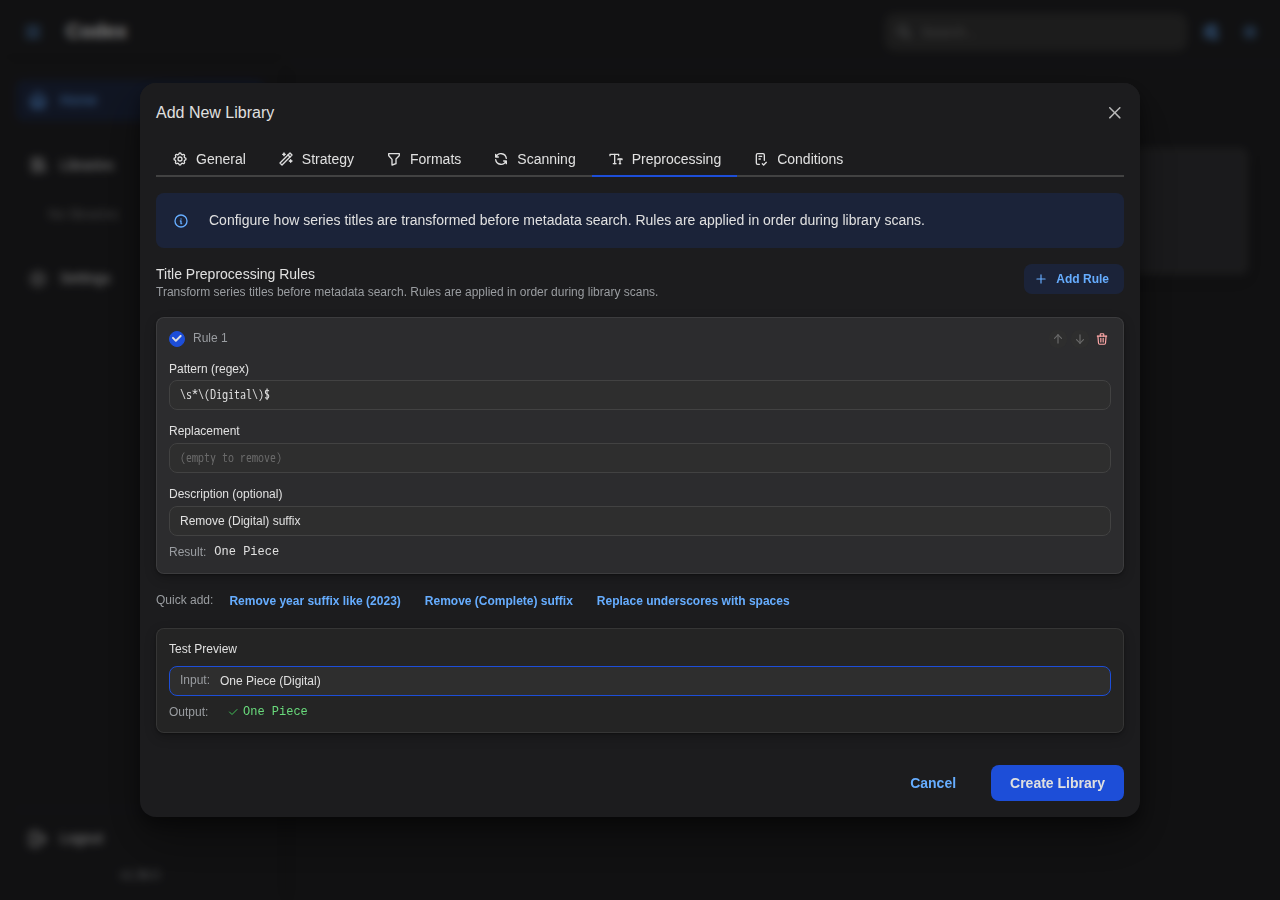
- Configure Preprocessing rules for title cleanup during scanning
- Configure Conditions for auto-match behavior
Via API
curl -X POST http://localhost:8080/api/v1/libraries \
  -H "Authorization: Bearer $TOKEN" \
  -H "Content-Type: application/json" \
  -d '{
    "name": "My Comics",
    "path": "/library/comics",
    "scanning_config": {
      "enabled": true,
      "cron_schedule": "0 0 * * *",
      "default_mode": "normal",
      "scan_on_start": true
    }
  }'
Via CLI (Initial Setup)
During initial setup, create a library after seeding the admin user:
# After running codex seed
# Use the API or web interface to create libraries
Scanning
Codex scans libraries to discover and catalog your media files.
Scan Modes
| Mode | Description | Speed | Use Case |
|---|---|---|---|
| Normal | Only processes new or changed files | Fast | Daily scans |
| Deep | Re-analyzes all files | Slow | Metadata fixes |
Normal Scan
- Checks file timestamps and hashes
- Only processes new or modified files
- Skips unchanged files
- Recommended for scheduled scans
Deep Scan
- Re-processes every file
- Updates all metadata
- Useful after:
- Changing metadata in files
- Fixing ComicInfo.xml
- Upgrading Codex (new parser features)
Triggering Scans
Via Web Interface
- Go to the library
- Click the Scan button
- Choose Normal or Deep scan
Via API
# Normal scan
curl -X POST "http://localhost:8080/api/v1/libraries/{id}/scan?mode=normal" \
  -H "Authorization: Bearer $TOKEN"

# Deep scan
curl -X POST "http://localhost:8080/api/v1/libraries/{id}/scan?mode=deep" \
  -H "Authorization: Bearer $TOKEN"

# Check scan status
curl http://localhost:8080/api/v1/libraries/{id}/scan-status \
  -H "Authorization: Bearer $TOKEN"
Automatic Scanning
Configure automatic scanning with cron schedules:
{
  "scanning_config": {
    "enabled": true,
    "cron_schedule": "0 0 * * *",
    "default_mode": "normal",
    "scan_on_start": true
  }
}
| Field | Description | Example |
|---|---|---|
enabled | Enable automatic scanning | true |
cron_schedule | Cron expression | 0 0 * * * (daily at midnight) |
default_mode | Scan mode to use | normal or deep |
scan_on_start | Scan when Codex starts | true |
Cron Expression Examples
| Expression | Schedule |
|---|---|
0 0 * * * | Daily at midnight |
0 */6 * * * | Every 6 hours |
0 0 * * 0 | Weekly on Sunday |
0 0 1 * * | Monthly on the 1st |
*/30 * * * * | Every 30 minutes |
Scan Progress
Track scan progress in real-time:
Via SSE Stream
curl -H "Authorization: Bearer $TOKEN" \
  -H "Accept: text/event-stream" \
  http://localhost:8080/api/v1/scans/stream
Events include:
- Files discovered
- Files processed
- Series created
- Books added
- Errors encountered
Via Web Interface
The UI shows real-time progress with:
- Progress bar
- Current file being processed
- Statistics (new books, series, errors)
Library Settings
Path Configuration
The library path must be:
- An absolute path
- Readable by the Codex process
- For Docker: mounted as a volume
# Docker volume mount
volumes:
  - /mnt/media/comics:/library/comics:ro
:::tip Read-Only Mount
Mount libraries as read-only (:ro) to prevent accidental modifications. Codex only needs read access.
:::
Multiple Libraries
Create separate libraries for different content types:
| Library | Path | Content |
|---|---|---|
| Comics | /library/comics | Western comics |
| Manga | /library/manga | Japanese manga |
| Ebooks | /library/ebooks | EPUB/PDF books |
Benefits:
- Independent scan schedules
- Separate organization
- Different access permissions (future)
Series Organization
Automatic Series Detection
Codex creates series from:
- Folder names: Each folder containing books becomes a series
- Filename patterns: Extracts series name from common patterns
Filename Patterns
Codex recognizes common naming conventions:
| Pattern | Extracted |
|---|---|
Series Name v01.cbz | Series: "Series Name", Volume: 1 |
Series Name #001.cbz | Series: "Series Name", Number: 1 |
Series-Name-001.cbz | Series: "Series Name", Number: 1 |
Series Name (2024) 001.cbz | Series: "Series Name", Year: 2024, Number: 1 |
Metadata Priority
Metadata sources (highest to lowest priority):
- ComicInfo.xml - In CBZ/CBR files
- EPUB Metadata - OPF file in EPUBs
- PDF Metadata - Document properties
- Filename - Parsed from file name
- Folder Name - Parent folder name
File Management
Adding New Files
- Add files to your library folder
- Trigger a scan (or wait for automatic scan)
- Codex discovers and catalogs the new files
Removing Files
- Delete files from your library folder
- Run a scan
- Codex marks the books as deleted (soft delete)
Soft Deletes
Deleted files are soft-deleted in the database:
- Removed from library views
- Reading progress preserved
- Can be restored if file returns
- Permanent deletion available via API
Permanent deletion (purging deleted books, or deleting the library) removes the book for good, including your current progress in it. Your reading time and finished read-throughs are kept and still count in your statistics, under a Removed from library line; see Reading Progress.
Moving Files
If you move files:
- Codex detects the file is missing (soft delete)
- Codex discovers the file in new location (new entry)
- File hash matching can detect this as a move (preserves metadata)
Duplicate Detection
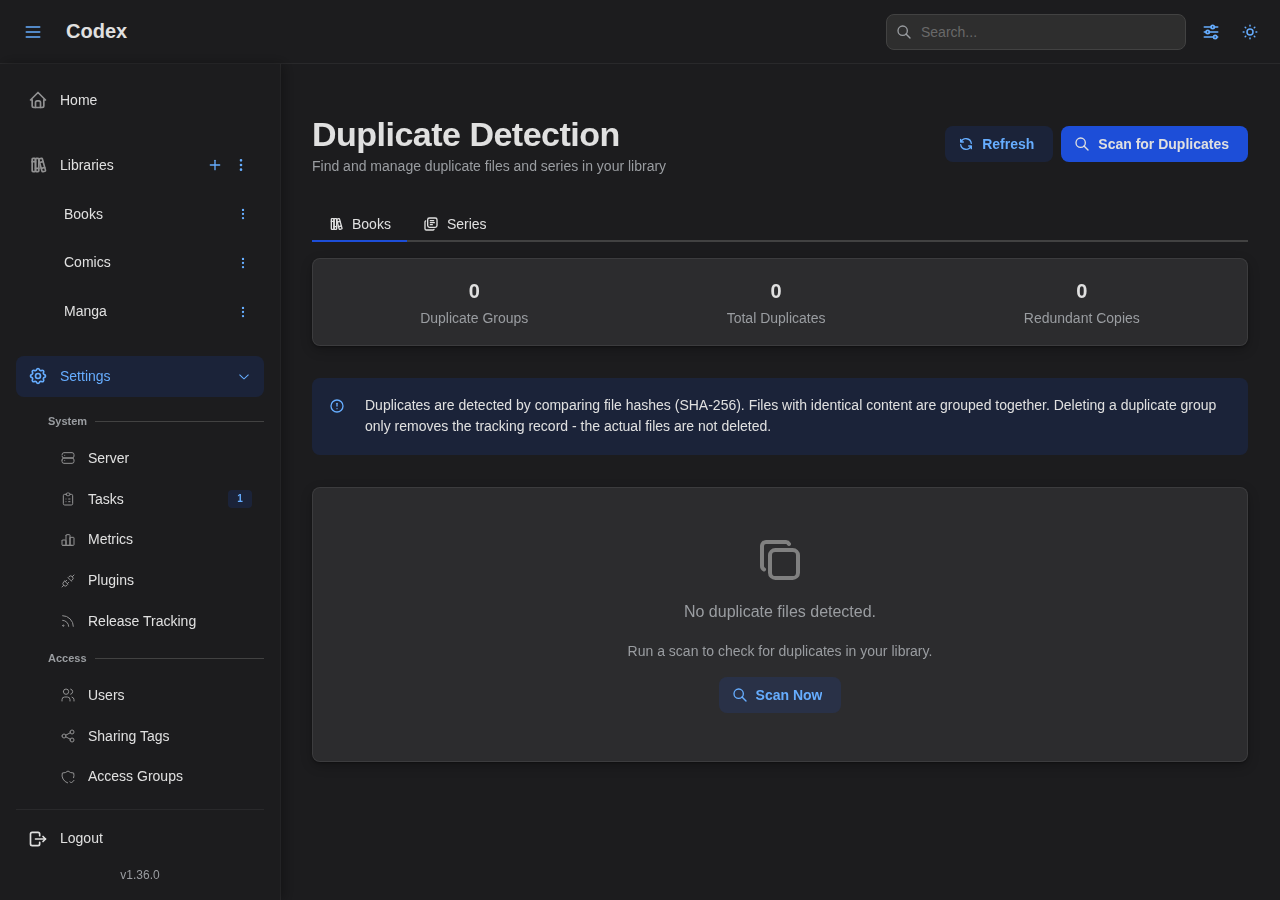
Codex can detect duplicate books (by file hash) and duplicate series (by external ID or normalized title) from a single page.
Enable Duplicate Scanning
Via the web interface, go to Settings > Duplicates and click Scan for Duplicates. A single scan runs both the book and series detection passes.
Or via the API:
curl -X POST http://localhost:8080/api/v1/duplicates/scan \
  -H "Authorization: Bearer $TOKEN"
Book Duplicates
Books are compared by their file hash (SHA-256). Two books with the same content, regardless of filename, library, or series, are grouped together.
curl http://localhost:8080/api/v1/duplicates \
  -H "Authorization: Bearer $TOKEN"
Series Duplicates
Series are matched by two independent signals, shown on the Series tab:
- External ID (High confidence). Two series resolve to the same upstream record after metadata fetch (e.g. both point at
plugin:mangabaka:12345). This match is global: the same external ID in two different libraries is still flagged. - Normalized title (Possible match). Two series in the same library share the same normalized title (e.g.
naruto). This match is scoped to one library so that a comic and a manga edition in separate libraries are not treated as duplicates.
Each group shows the matched series with their library, book count, and last-updated date so you can decide which entry to keep.
# All series duplicate groups
curl http://localhost:8080/api/v1/duplicates/series \
  -H "Authorization: Bearer $TOKEN"

# Filter by signal: external_id or title
curl "http://localhost:8080/api/v1/duplicates/series?matchType=external_id" \
  -H "Authorization: Bearer $TOKEN"
Deleting a Group
Deleting a duplicate group from the UI or API only removes the tracking record. The underlying books and series are never touched. If the duplicates still exist on disk, the next scan recreates the group.
# Remove a book duplicate group
curl -X DELETE http://localhost:8080/api/v1/duplicates/{id} \
  -H "Authorization: Bearer $TOKEN"

# Remove a series duplicate group
curl -X DELETE http://localhost:8080/api/v1/duplicates/series/{id} \
  -H "Authorization: Bearer $TOKEN"
When to Rescan
The scan is triggered manually. Rerun it after:
- A library scan that ingested new series.
- A metadata fetch that assigned or changed external IDs (this can promote a title-only match into a higher-confidence external ID match).
- Renaming a series, which changes its normalized title.
Troubleshooting
Scan Not Finding Files
- Check path: Verify the library path exists
- Check permissions: Ensure Codex can read the directory
- Check file types: Only supported formats are scanned
- Check logs: Look for errors in Codex logs
# Docker
docker compose logs codex | grep -i "scan\|error"

# Systemd
journalctl -u codex | grep -i "scan\|error"
Series Not Grouped Correctly
- Check folder structure: Books in same folder = same series
- Check filenames: Consistent naming helps parsing
- Add ComicInfo.xml: Explicit metadata overrides parsing
- Re-scan with deep mode: Forces metadata re-extraction
Metadata Not Updating
- Run deep scan: Normal scan skips unchanged files
- Check ComicInfo.xml: Ensure it's valid XML
- Check file timestamps: Touch files to mark as changed
Scan Taking Too Long
- Check concurrent scans setting: Lower if system is overloaded
- Use normal mode: Skip unchanged files
- Check disk I/O: Slow storage affects scanning
- Check worker count: Adjust based on CPU cores
Best Practices
Folder Organization
/library/
├── Comics/           # One library for western comics
│   └── [Series]/     # Each series in its own folder
│       └── files...
├── Manga/           # Separate library for manga
│   └── [Series]/
│       └── files...
└── Ebooks/          # Separate library for books
    └── [Category]/
        └── files...
File Naming
Consistent naming helps Codex parse metadata:
# Good
Batman 001.cbz
Batman 002.cbz
One Piece v01.cbz
One Piece v02.cbz

# Less ideal (but works)
batman_issue_1.cbz
onepiece-vol-1-chapter-1-10.cbz
ComicInfo.xml
For best results, include ComicInfo.xml in your comics:
<?xml version="1.0"?>
<ComicInfo>
  <Title>Issue Title</Title>
  <Series>Batman</Series>
  <Number>1</Number>
  <Writer>Author Name</Writer>
  <Publisher>DC Comics</Publisher>
  <Genre>Superhero</Genre>
  <Summary>Issue description...</Summary>
</ComicInfo>
Scan Schedules
- Small libraries (< 1000 books): Daily or on-demand
- Medium libraries (1000-10000 books): Daily at off-peak hours
- Large libraries (> 10000 books): Weekly or on-demand
Next Steps
- Scanning strategies - Configure series and book detection
- Supported formats
- Configure OPDS
- API documentation